 how-to
How to Set Up a Home Network With Professional Help
Last Updated: October 30, 2026
Quick Summary
A professional home network setup visit covers the modem and router, Wi-Fi coverage testing in each room, wired connections where needed, and smart-home device setup. Ask providers exactly what is included, since some quotes cover only the router install.
- A complete visit usually includes equipment assessment, router configuration, and coverage testing in the rooms you use most.
- Planning first, with an inventory, coverage map, and floor sketch, makes the visit faster and the quote more accurate.
- Mesh Wi-Fi is worth considering for homes over roughly 2,000 square feet or with multiple floors and thick walls.
- Wired Ethernet connections give the most consistent speed for video calls, gaming, and large file transfers.
- Compare quotes line by line on labor, equipment, cabling, and testing, since lower headline prices often exclude cabling.
Table of Contents
- What a Professional Home Network Setup Service Includes
- Planning Your Home Network Before Anyone Arrives
- Mesh Wi-Fi Installation: When It Makes Sense
- Ethernet Wiring Installation for Hardwired Rooms
- How Much Home Network Installation Cost Typically Breaks Down
- Home Network Troubleshooting You Can Do Before Calling a Pro
- Booking Your Home Network Setup Visit With Handy Horrigan LLC
- Frequently Asked Questions
What a Professional Home Network Setup Service Includes
Home network setup services near me searches usually come from people who have tried to fix Wi-Fi themselves and given up.
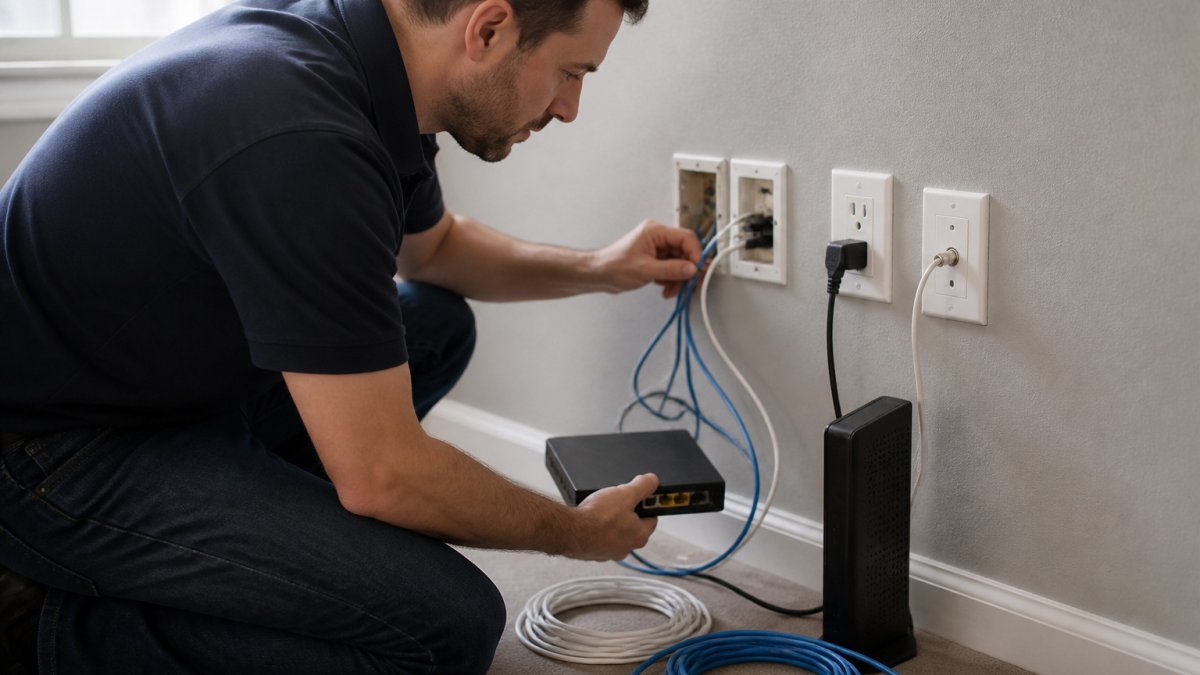
A typical network setup visit covers the modem and router, Wi-Fi coverage across the home, wired connections where they make sense, and the smart-home devices that depend on a stable network.
A complete visit usually includes:
- Assessment of your current internet service and equipment
- Router configuration, including network names, passwords and guest access
- Coverage testing in the rooms you use most
- Connection of printers, TVs, cameras and smart-home devices
- A walkthrough so you know how to manage the network afterward
Ask any provider exactly what is included before booking. Some quotes cover only the router install, while others include cabling and device setup.
Planning Your Home Network Before Anyone Arrives
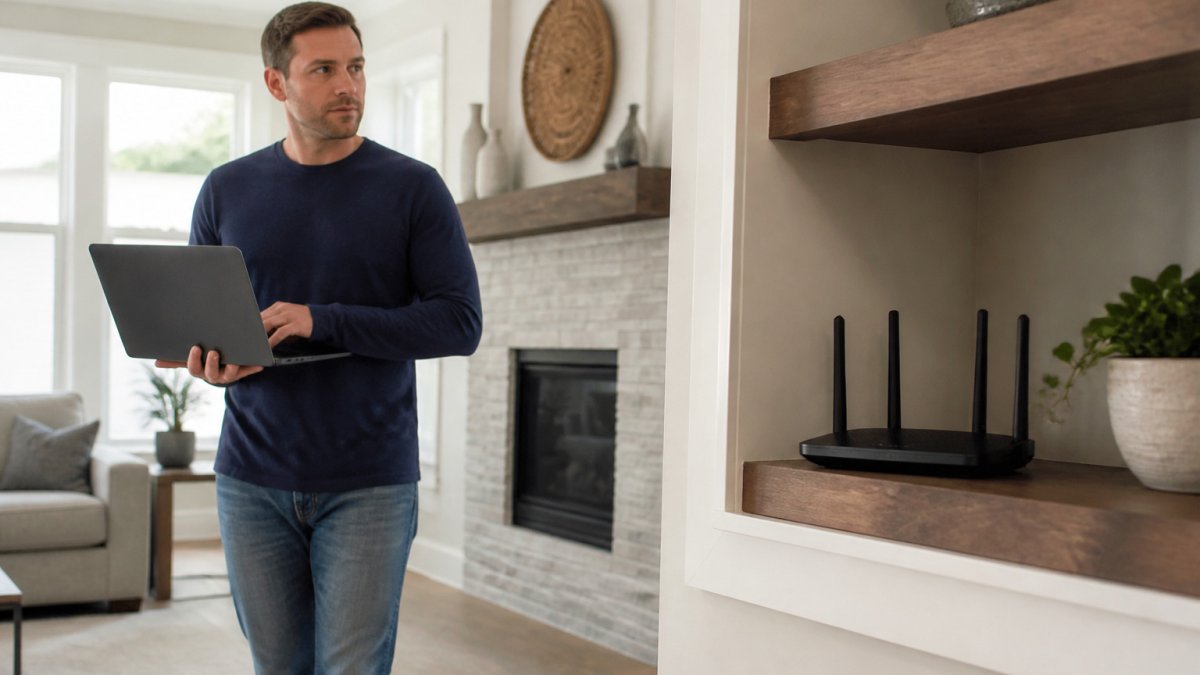
Most local service pages jump straight to "book an installer." The step below is the one homeowners actually need and rarely get: a simple way to plan the network before anyone shows up, so the visit is faster, the quote is more accurate, and you buy the right equipment the first time.
Step 1: Inventory what you have and what you pay for
Write down your internet plan's advertised download and upload speeds, your provider, and the model of your modem and router. Check whether the modem is owned by you or rented from the provider, rented gateways sometimes limit what a technician can configure. Note how many devices connect on a typical evening: phones, laptops, TVs, streaming sticks, game consoles, smart speakers, cameras, thermostats, and printers. A household with 30+ devices has different needs than one with eight.
Step 2: Map where the signal actually fails
Walk through each room with your phone and note where the Wi-Fi bars drop or a video call stutters. Mark the rooms where you work, stream, or game, those are the priority zones. Note the construction between rooms: drywall is easy for Wi-Fi to pass through, while brick, plaster, concrete, and metal ductwork block it. A room that is close to the router but behind a brick fireplace can perform worse than a room farther away with a clear path.
Step 3: Find the best spot for the router or main node
Central is usually better than a corner, and high and open beats inside a cabinet or on the floor. Avoid placing the router next to a microwave, cordless phone base, or large metal appliance. If your internet line enters the home in a corner or basement, that is where the modem has to live, but the router or first mesh node can often be connected by Ethernet to a better central location. That single move frequently fixes more dead zones than adding hardware.
Step 4: Decide wired versus wireless for each priority zone
List the devices that need the most reliable connection, desktop computers, game consoles, work laptops, and any device doing video calls or large file transfers. For each one, note whether an Ethernet jack already exists nearby. If not, mark it as a candidate for a cable drop. Wired connections are more consistent than Wi-Fi and reduce the load on your wireless network, which helps every other device.
Step 5: Sketch a simple floor plan
A rough hand sketch is enough. Mark the internet entry point, the router location, the priority rooms, and any walls that block signal.
Gather these items for the visit:
- Your internet provider account details and current speed plan
- Model numbers for any existing router or modem, and whether the modem is rented
- A list of smart-home devices and where each one is installed
- Your floor plan sketch and the rooms with the weakest signal
A common mistake is buying equipment before a professional assesses the home. A mesh system that suits a single-story ranch may waste money in a multistory home with brick walls, and a single strong router may be all a small apartment needs. Planning first, buying second.
Mesh Wi-Fi Installation: When It Makes Sense
Mesh Wi-Fi uses several connected access points to spread coverage through a home. Instead of one router broadcasting from a single corner, mesh nodes work together so devices roam from one point to the next without dropping the connection.
Mesh is worth considering when:
- The home is larger than roughly 2,000 square feet
- Signal drops in bedrooms, basements or upstairs rooms
- The house has multiple floors or thick interior walls
- Many devices compete for bandwidth at the same time
Mesh is often unnecessary for a small apartment where one well-placed router reaches every room. Buying a mesh kit for a small space adds cost without improving performance.
Placement matters more than the brand. Nodes placed too far apart or behind furniture create weak links between each other.
Ethernet Wiring Installation for Hardwired Rooms
Wired connections give the most consistent speed and lowest latency, which matters for gaming, video editing and work from home.
Cat6 cable is commonly used for new runs because it supports faster speeds over longer distances than older Cat5 cable. Running cable through walls requires drilling, routing through existing spaces and terminating the ends correctly.
Wired installation makes the most sense when:
- A room needs stable speeds for video calls or large file transfers
- Gaming consoles or desktop computers sit far from the router
- Wireless signal is weak even after adding coverage equipment
- You are already renovating and walls are open
Ask whether each wired port will be speed-tested before the visit ends. A cable that looks connected can still perform poorly.
How Much Home Network Installation Cost Typically Breaks Down
Most local network setup pages say "competitive pricing" or "free quote" and stop there. That is not useful when you are trying to budget.
A residential network installation quote usually has four parts:
- Labor, billed hourly or as a flat visit fee. A basic router and modem setup is often a one- to two-hour visit. A whole-home mesh install with device setup commonly runs three to five hours. Cabling runs add time per drop.
- Equipment, router, mesh nodes, switches, access points, and cabling materials. You can supply your own or let the provider supply it; provider-supplied gear is usually marked up, so ask which model and whether the price is retail or bundled.
- Cabling and wall work, Cat6 cable, keystone jacks, wall plates, patch panels, and any drywall patching. A single interior wall drop is usually simpler and cheaper than a run through a finished basement ceiling or an exterior wall.
- Follow-up and testing, coverage verification, speed tests at each access point, and a return visit if a node needs repositioning. Confirm whether this is included or billed separately.
Handy Horrigan LLC does not publish fixed rates for this work. To compare these figures against the wider market, see our handyman services pricing guide.
Factors that commonly move the estimate up:
- Home size and layout, more square footage, multiple floors, and thick or plaster walls mean more nodes and more testing time.
- Wiring complexity, finished basements, exterior walls, and homes without an accessible attic or crawlspace increase labor.
- Equipment tier, Wi-Fi 6E or Wi-Fi 7 mesh systems cost more than older Wi-Fi 5 gear, and the labor to configure them is similar.
- Device count, dozens of smart-home devices, cameras, and printers take longer to onboard and label.
- Existing problems, old coax, a failing modem, or a provider-supplied gateway in bridge mode can add diagnostic time.
When you compare quotes, put them side by side on the same four lines: labor, equipment, cabling, and testing/follow-up. A lower headline number often excludes cabling or device setup, which is where the real difference shows up.
The four cost lines of a network installation quote, with the factors that move each one.
| Quote line | What it covers | Note |
|---|---|---|
| Labor | Hourly or flat visit fee | Basic setup 1-2 hours; whole-home mesh 3-5 hours |
| Equipment | Router, mesh nodes, switches, access points | Provider-supplied gear is usually marked up |
| Cabling and wall work | Cat6 cable, jacks, wall plates, patching | Single interior drop is simpler than exterior or basement runs |
| Follow-up and testing | Coverage checks, speed tests, return visits | Confirm whether included or billed separately |
| Home size and layout | Square footage, floors, wall type | More floors and plaster walls mean more nodes |
| Equipment tier | Wi-Fi 5 vs Wi-Fi 6E or Wi-Fi 7 gear | Newer mesh systems cost more |
Home Network Troubleshooting You Can Do Before Calling a Pro
Many common network problems have simple fixes. Start with the basics before scheduling a visit, because a restart or cable check often solves the issue.
Try these steps in order:
- Restart the modem and router. Unplug both for 30 seconds, then power the modem first and wait for lights to stabilize.
- Check every cable. Loose coax or Ethernet connections cause intermittent drops.
- Move the router off the floor. Placing it inside a cabinet or behind a TV reduces signal.
- Confirm the problem is with Wi-Fi, not the internet. Test a wired device; if it is also slow, call your internet provider.
- Change the Wi-Fi channel. Crowded channels in apartments and dense neighborhoods slow connections.
If problems continue after these steps, the cause may be equipment age, interference or wiring. At that point, a professional diagnosis saves time. For a broader walkthrough of diagnosing home computer hardware problems, you can review that guide as well. Handy Horrigan LLC also offers remote computer support and hardware setup for network-connected devices.
Booking Your Home Network Setup Visit With Handy Horrigan LLC
Our team at Handy Horrigan LLC serves homeowners in Southwest Ohio, including Preble, Butler, Hamilton and Clinton counties. Veterans and active military personnel receive a 10% discount on eligible services.
To book, contact Handy Horrigan LLC through our website with your address, a brief description of your network problems and any equipment you already own. If you are still deciding whether to hire, our guide on what to ask before hiring a handyman in Butler County covers the questions worth asking first.
Before the visit, have your internet account information ready and clear space near the router and modem. A clear, prepared home helps the technician finish the job in one visit.
Frequently Asked Questions
What does a home network setup service include?
A typical home network setup visit covers router placement and configuration and connecting smart-home devices. Mesh nodes or Ethernet cable can be added where wired connections are needed. Ask for a written list of tasks before booking so you know exactly what is included in the visit and what would be billed separately.
How much does professional home network installation cost?
Pricing depends on the size of the home, the number of rooms that need coverage, whether mesh nodes or new cabling are required, and how many devices must be configured. Handy Horrigan LLC does not publish fixed rates for this work, so the most accurate figure comes from a site assessment. Contact us for a quote based on your home and the services you need, and ask for the estimate in writing.
Should I choose a mesh Wi-Fi system or a wired network?
Mesh Wi-Fi works well when you need coverage across several floors or rooms and cannot easily run cable. A wired Ethernet connection is more reliable for desktops, gaming consoles, and office equipment that need consistent performance. Many homes use both: mesh for mobile devices and Ethernet for fixed equipment. A technician can test your signal before recommending one approach or the other.