 how-to
How to Troubleshoot Home Computer Hardware
Table of Contents
- What You'll Need Before Starting
- Step 1: Check Power, Cables, and Connections
- Computer Won't Turn On Troubleshooting
- Step 2: How to Check PC Hardware for Problems
- Computer Overheating Troubleshooting
- PC Keeps Freezing Hardware Issue
- Display, Monitor, and Graphics Problems
- Unusual Noises and When to Stop Troubleshooting
- Frequently Asked Questions
Last Updated: October 19, 2026
What You'll Need Before Starting
Troubleshooting home computer hardware doesn't require expensive equipment or advanced training, just the right mindset, basic safety precautions, and a few simple tools. Before you open your case or touch any internal components, understand what could go wrong and how to protect yourself and your equipment.
Safety First: Electrostatic Discharge and Electrical Precautions
Static electricity can destroy computer components instantly.
Here's how to stay safe:
- Wear an anti-static wrist strap connected to a grounded surface
- Touch a metal part of the computer case before handling any components
- Work on a non-carpeted surface when possible
- Avoid working in dry conditions (humidity actually helps prevent static)
- Never work barefoot on carpet
Electrical safety is equally important. Modern power supplies contain capacitors that hold a charge even when unplugged. Never assume a computer is safe to open just because it's powered off.
Follow these electrical precautions:
- Unplug the computer completely before opening it
- Wait at least 30 seconds after unplugging before opening the case
- Never touch the power supply internals
- If you see burn marks or smell burning plastic, stop immediately and call a professional
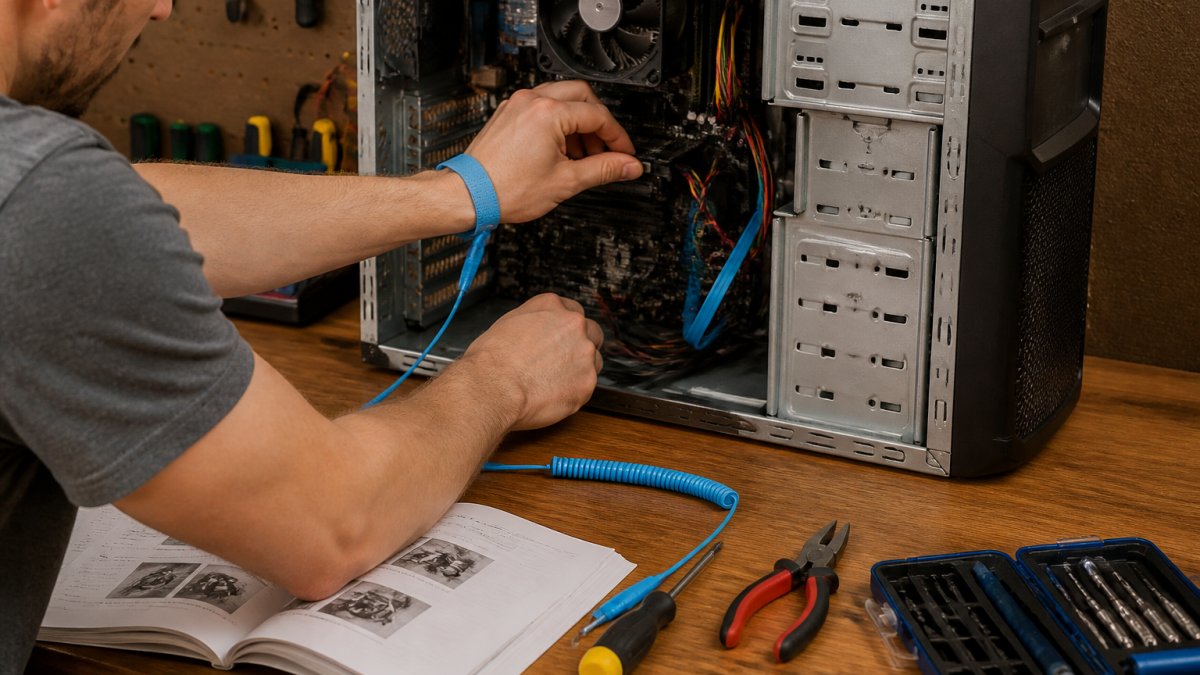
Tools and Documentation You Should Have
You don't need a full technician's toolkit. Most home computer troubleshooting requires just a few items.
Essential tools for how to troubleshoot home computer hardware:
- Anti-static wrist strap (required, not optional)
- Phillips head screwdriver (small and medium sizes)
- Flashlight or headlamp (to see inside dark cases)
- Compressed air canister (for cleaning dust)
- Thermal paste (if reseating the CPU)
- Documentation (your computer's manual, if available)
Keep your computer's manual nearby. It shows where components sit and how to safely remove them. If you don't have the physical manual, download it from the manufacturer's website using another device.
We recommend keeping a notebook handy. Write down what you see, what you tried, and what happened.
Step 1: Check Power, Cables, and Connections
Most computer problems start with power. Before you suspect a failing hard drive or bad RAM, verify that power is actually reaching your system.
Begin with the simplest checks. Walk around your computer and trace every cable. Look for loose connections at both ends.
Check these power connections:
- Power cable from wall outlet to power supply
- Power cable from power supply to motherboard (large 24-pin connector)
- Power cable from power supply to CPU (usually 4-pin or 8-pin near the processor)
- Power cables to storage drives and graphics card
- SATA data cables (if using older hard drives)
Reseat every cable you find: unplug it completely and plug it back in firmly.
For laptops, check the battery and charging connection. A failing battery won't show obvious signs.
Computer Won't Turn On Troubleshooting
When a computer won't power on at all, the problem is usually power-related. No lights, no fans, no beeps, this points to either the power supply or the connection between power and the motherboard.
Power Supply Diagnosis
The power supply is the most common failure point. It converts wall power into the voltages your computer needs. When it fails, nothing works.
Test the power supply with these steps:
- Unplug the computer completely
- Wait 30 seconds
- Plug it back in
- Press the power button
If nothing happens, try a different power outlet to rule out a tripped circuit breaker. If the outlet works with another device, your power supply is likely dead.
A simple test involves using a paperclip. Unplug the computer, locate the 24-pin power connector on the motherboard, and look for the green wire.
Power Button and Motherboard Issues
If the power supply works but the computer still won't start, the problem might be the power button itself or the motherboard connection.
The power button is just a switch. Dust and debris can prevent it from making contact. Try pressing the button multiple times firmly.
Check the power button connector on the motherboard. It's a small two-pin header usually labeled PWR_SW or POWER.
Reseat this connector by unplugging it and plugging it back in firmly.
Step 2: How to Check PC Hardware for Problems
Once power is confirmed working, move to checking individual components. This is where how to troubleshoot home computer hardware becomes systematic. You're isolating which part is actually failing.
Visual Inspection and Component Reseating
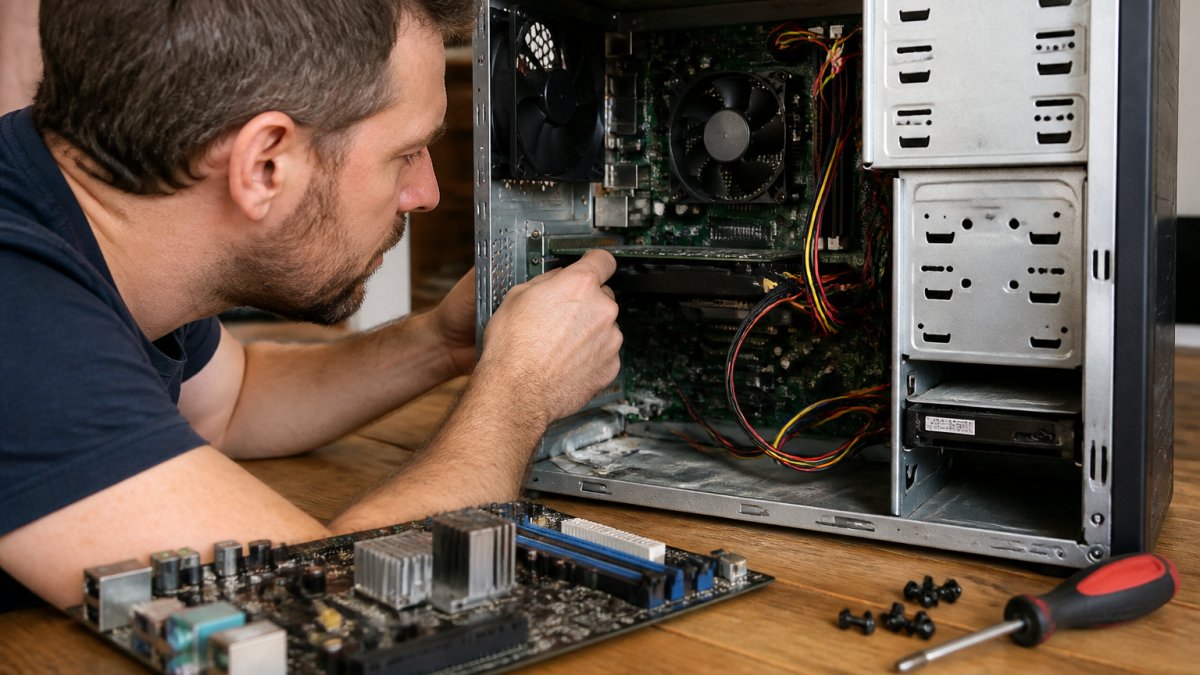
Open your computer case carefully. Look inside for obvious damage: burn marks, melted plastic, or loose components.
Check these components visually:
- RAM sticks in their slots
- Graphics card in the PCIe slot
- CPU cooler mounted firmly
- Cables not pinched or pressed against fans
- Dust buildup on heatsinks and fans
Dust is a silent killer: thick buildup prevents cooling fans from working properly, causing overheating and crashes.
Reseat RAM by unplugging it completely and reinserting it. RAM should click into place at both ends.
For graphics cards, pull the retention clip at the end of the slot, remove the card, and reinsert it firmly until it clicks.
Memory Errors and RAM Diagnostics
Bad RAM causes random crashes, freezes, and blue screens, and testing it requires no special tools.
Windows includes a built-in memory diagnostic tool. Here's how to use it:
- Press Windows key + R
- Type "mdsched.exe" and press Enter
- Select "Restart now and check for problems"
- Your computer restarts and runs the test
- Results appear when Windows starts again
The test takes 10-15 minutes. If errors are found, one RAM stick is failing: note which one, remove it, and rerun the test with only the other stick installed.
For how to check PC hardware for problems involving memory, this diagnostic tool is your best friend. It catches failing RAM before it causes data loss.
Computer Overheating Troubleshooting
Overheating causes random restarts, freezes, and slowdowns. Your computer shuts itself down to prevent damage when temperatures get too high, a safety feature, not a problem to ignore.
Monitoring Temperature and Fan Performance
Check your computer's temperature before assuming overheating is the issue. Several free tools show real-time temperatures.
Download and run a temperature monitoring tool:
- HWiNFO (free, detailed)
- Core Temp (free, simple)
- GPU-Z (for graphics card temperature)
Normal temperatures vary by component. CPUs typically run between 40-65°C under normal use. Graphics cards run 50-80°C. If temperatures exceed 80°C consistently, overheating is your problem.
Listen to your fans. A healthy computer is relatively quiet. If fans sound like a jet engine, they're working hard to cool an overheating system.
Cleaning Dust and Improving Airflow
Dust is the most common cause of overheating, blocking airflow and trapping heat inside the case.
Clean your computer with these steps:
- Power off and unplug completely
- Wait 30 seconds
- Use compressed air to blow dust out of heatsinks and fans
- Hold the can upright and use short bursts
- Don't let the fan spin freely while you're cleaning (hold it still)
- Clean dust filters if your case has them
- Ensure case vents aren't blocked by furniture
Improve airflow by checking case design: front intake fans pull cool air in, rear exhaust fans push hot air out. If your case has no intake fans, consider adding one, positive airflow (more air in than out) prevents hot spots.
PC Keeps Freezing Hardware Issue
A freezing computer can point to several hardware problems. The key is isolating which component is failing.
Isolating Hardware from Software Causes
Before assuming hardware is failing, rule out software: malware and corrupted drivers cause freezes too.
Boot into Safe Mode to test hardware separately from software:
- Restart your computer
- Hold F8 while it boots (timing matters, do this before Windows logo appears)
- Select "Safe Mode" from the menu
- Windows loads with only essential drivers
If your computer freezes in Safe Mode, the problem is likely hardware. If it runs fine, a driver or software is causing the issue.
For how to troubleshoot home computer hardware involving freezing, this test is essential. It saves you from replacing parts that aren't actually broken.
Graphics Card, Storage, and System Crashes
Graphics card problems cause freezes, especially during gaming or video playback. Reseat the card first; if freezing continues, it might be failing.
Storage drive problems also cause freezes, as a failing hard drive or SSD slows everything down while the system struggles to read data. Listen for clicking sounds, which indicate mechanical failure.
Run a storage diagnostic:
- Right-click your C: drive
- Select "Properties"
- Click "Check" under Tools
- Windows scans for errors
If errors are found, back up your data immediately. A failing drive needs professional recovery or replacement.
Display, Monitor, and Graphics Problems
No picture on screen doesn't always mean a failed graphics card. Check these items first.
Verify the monitor is powered on and connected. Try a different monitor if available. Swap the video cable.
If the monitor shows nothing but the computer is running, reseat the graphics card.
For integrated graphics (built into the CPU), try removing and reseating RAM. Sometimes RAM issues prevent graphics from initializing.
Try booting with the graphics card removed.
Unusual Noises and When to Stop Troubleshooting
Strange sounds from your computer are warning signs. Different noises point to different problems.
Identifying Failing Components by Sound
Clicking or ticking sounds usually come from a failing hard drive. The drive's read head is hitting the platter repeatedly.
Grinding or whirring sounds suggest a fan bearing is failing. The fan still spins but with friction.
Beeping sounds are POST codes. Your motherboard beeps during startup to report problems. One beep is normal. Multiple beeps indicate specific failures.
Buzzing sounds from inside the case suggest a loose component vibrating against the case.
Repair Versus Replace: When to Call a Professional
Knowing when to stop troubleshooting saves money and prevents damage. Some problems require professional tools and expertise.
Stop troubleshooting and call a professional if:
- You see burn marks or smell burning plastic
- You hear clicking from the hard drive
- The computer won't power on after you've checked all connections
- Multiple components seem to be failing
- You're uncomfortable opening the computer case
- The problem involves data recovery
At Handy Horrigan LLC, we offer remote computer support and on-site hardware diagnostics.
Many repairs cost less than replacement.
Document what you've tested and what you found. This information helps a professional technician get to the solution faster.
Computer hardware troubleshooting doesn't require advanced training.
Frequently Asked Questions
What are the most common reasons a computer won't turn on?
The most frequent causes are loose power cables, a faulty power supply, a dead battery (for laptops), or a failed motherboard. Start by checking that the power cable is firmly seated at both the wall outlet and the computer's power input. Listen for fan noise or LED lights when you press the power button. If nothing happens, the power supply may need replacement. For laptops, try charging for 30 minutes before attempting to power on again.
How can I tell if my computer hardware problem is serious enough to stop troubleshooting myself?
Stop troubleshooting and contact a professional if you see visible damage to components, smell burning or melting plastic, hear grinding or clicking sounds from the hard drive, experience repeated blue screen errors after reseating RAM, or if the computer randomly restarts despite your diagnostics. These symptoms often indicate hardware failure that requires specialized repair tools or component replacement. Continuing to use the system may cause data loss or additional damage.
What should I do before opening my computer to check hardware?
Always power off the computer completely and unplug it from the wall outlet. Wait at least 5 minutes for residual power to drain. Wear an anti-static wristband connected to a grounded surface to prevent electrostatic discharge from damaging sensitive components. Keep all screws and small parts organized. Take photos of cable connections before disconnecting anything so you can reconnect them correctly. Never work on a computer while it's powered on or plugged in.
How do I know if my computer is overheating or if it's a different hardware problem?
Overheating typically causes the system to slow down, fans to run constantly at high speed, or the computer to shut down unexpectedly after 20-30 minutes of use. Check the CPU and GPU temperatures using free monitoring software. If temperatures exceed 80-90°C under load, overheating is likely the issue. Clean dust from the heatsink and fans, ensure case airflow is unobstructed, and verify that thermal paste on the CPU hasn't dried out. If temperatures are normal but the system still freezes, the problem is likely RAM, storage, or GPU-related instead.